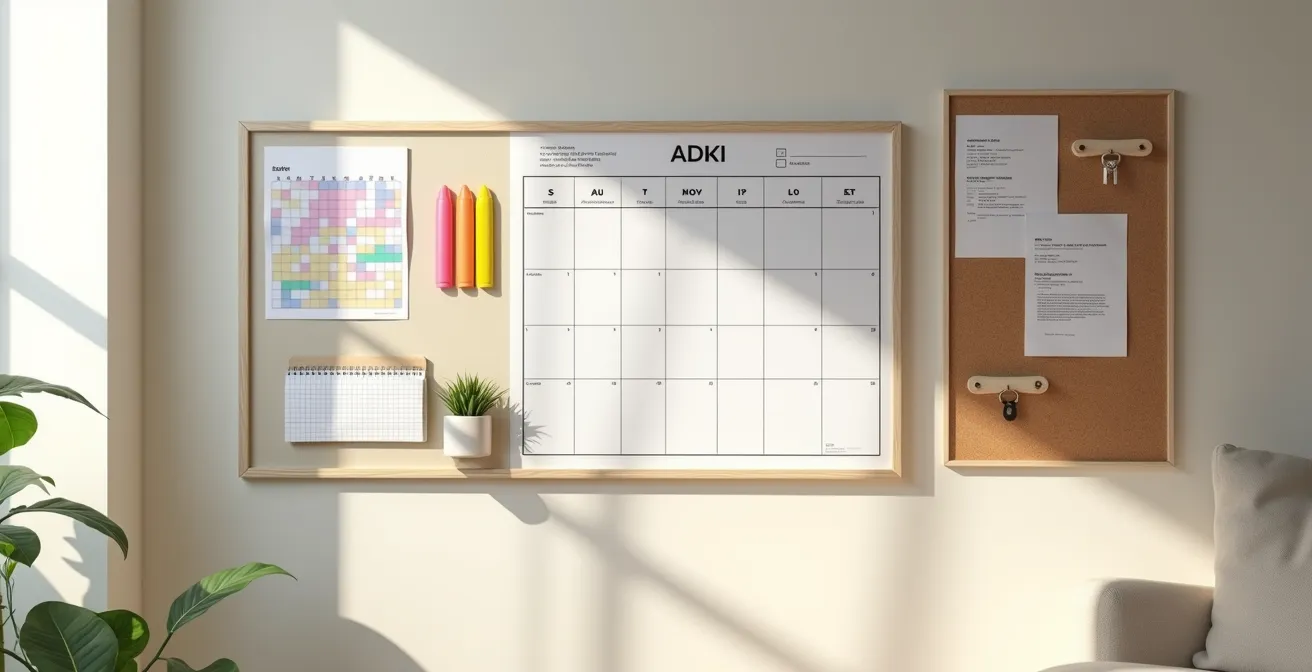
The key to managing appointments and daily tasks isn’t a better memory, but a better system that remembers for you.
- A home command center acts as a ‘cognitive offloading’ tool, freeing up your mental energy by moving information to an external, organized space.
- Simple, visual systems like color-coding and automated voice reminders are far more reliable and less stressful than relying on memory alone.
Recommendation: Start by creating a single, designated ‘action funnel’—one spot where all incoming papers, mail, and notes must land to be processed.
Feeling like you’re juggling a dozen mental tabs at once? A doctor’s appointment on Tuesday, a prescription refill on Thursday, a grandchild’s birthday next week, and the lingering question of where you left your glasses. This constant mental load is exhausting. The common advice is to get a calendar or a pillbox, but these are just isolated tools, not a comprehensive system. They often add another thing to remember to check.
The problem isn’t a failing memory; it’s an overloaded one. We’re asking our brains to act as a filing cabinet, a scheduler, and an alarm clock simultaneously. This is inefficient and stressful. What if the solution wasn’t to try harder to remember, but to strategically design our environment to do the remembering for us? This is the core principle of ‘cognitive offloading’—freeing up precious mental real estate by externalizing memory tasks.
This guide moves beyond simple tips. We will construct a true “Command Center,” a physical and digital ecosystem designed to capture, organize, and cue every important piece of information in your life. It’s not about adding more work; it’s about creating a clever, structured system that reduces the mental effort required to stay on top of everything. We’ll explore how to blend timeless memory techniques with modern tools, organize critical documents, and build a home that actively supports your peace of mind.
To help you navigate this process, this article is structured to build your command center from the ground up. You will find a clear roadmap to create a system that works for you, from mental frameworks to practical tools and smart home integration.
Summary: How to Design a “Command Center” at Home to Manage Appointments?
- How to Use the Loci Method to Remember Shopping Lists?
- Alexa or Google Home: Which Is Easier for Reminder Setup?
- The Risk of Relying Solely on Memory for Medication
- How to Use Color-Coding to Organize Household Documents?
- Omega-3s vs Antioxidants: Which Supports Short-Term Memory Best?
- Environmental Triggers: How to Retrace Steps to Find Lost Items?
- How to Organize Medical History for a New Geriatrician Consult?
- How to Build a ‘Senior-Safe’ Smart Home Ecosystem from Scratch?
How to Use the Loci Method to Remember Shopping Lists?
Before we build the external system, let’s start with a powerful internal one. The Method of Loci, or “memory palace,” is an ancient technique that links items to be remembered with familiar physical locations. But for a recurring task like a shopping list, we can create a clever hybrid approach that reduces cognitive load rather than adding to it. Instead of creating a new mental journey for every trip, you establish a fixed, permanent route for your absolute essentials.
The goal is not to memorize a 30-item list but to automate the recall of the 5-10 things you buy every single time. Think of it as a mental checklist for staples like milk, bread, eggs, or coffee. You create a short, unchanging mental walk through your home—for example, from your bedside table to the kitchen sink—and permanently “place” one essential item at each spot. The milk is always visualized pouring over your nightstand; the bread is always popping out of the bathroom faucet.
This exaggerated, permanent visualization creates a strong, automatic association. You no longer have to actively “remember” to buy milk; you just mentally walk your familiar route and the item appears. For everything else—the special ingredients, the one-off purchases—you still use a physical list. This hybrid method gives you the best of both worlds: the power of a classic mnemonic for core items and the reliability of an external tool for everything else, perfectly aligning with our cognitive offloading strategy.
Alexa or Google Home: Which Is Easier for Reminder Setup?
Voice assistants are the cornerstone of a modern command center, acting as a hands-free, on-demand memory partner. Setting a reminder by simply speaking it aloud is a game-changer for cognitive offloading. The two main players, Amazon’s Alexa and Google Home, are both excellent, but they have subtle differences that matter for seniors. The key factor isn’t the number of features, but the “forgiveness” of the interaction—how well the device understands natural, sometimes hesitant, human speech.
This is where the user experience diverges. Alexa, for instance, tends to be slightly more patient if you pause mid-command, giving you a few extra seconds to gather your thoughts. Google, on the other hand, often has a slight edge in understanding a wider variety of accents and dialects. For a caregiver, both platforms offer remote access through their respective apps (Alexa app sharing or Google Family Group), allowing a family member to help manage reminders and settings from afar.
The visual below captures the essence of this interaction: a calm, simple exchange with a piece of technology designed to help, not intimidate. The best choice ultimately depends on individual speech patterns and comfort levels, but both offer a powerful way to externalize the mental task of remembering.
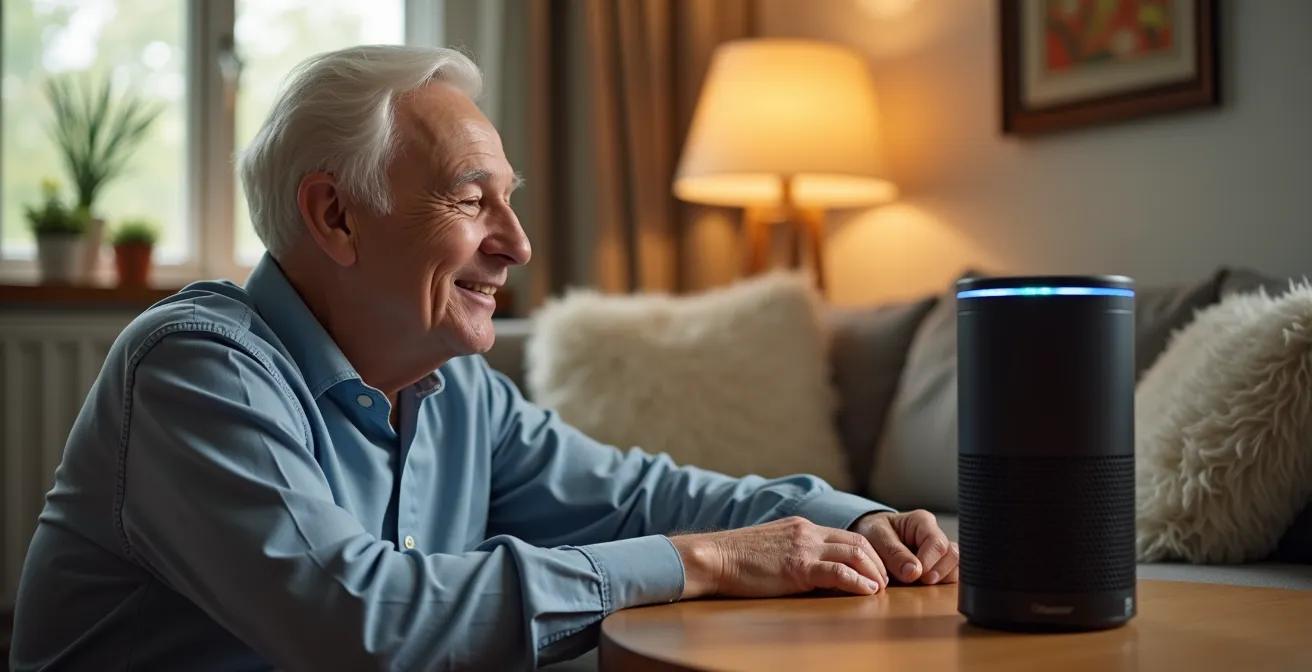
When choosing, consider the clarity of the confirmation. Google often provides a more detailed verbal confirmation and a notification on its app, which can be reassuring. Alexa’s confirmation is typically simpler and more direct. The following table breaks down these nuanced differences to help you decide which system better fits your personal style of communication.
| Feature | Alexa | Google Home |
|---|---|---|
| Pause Mid-Command Tolerance | High – allows 3-5 seconds | Medium – allows 2-3 seconds |
| Accent Recognition | Good for common accents | Better for varied accents |
| Confirmation Clarity | Simple verbal confirmation | Detailed verbal + visual on app |
| Caregiver Remote Access | Via Alexa app sharing | Via Google Family Group |
| Setup Complexity | Simpler initial setup | More options but complex |
The Risk of Relying Solely on Memory for Medication
If there’s one area where cognitive offloading is not just a convenience but a critical safety measure, it’s medication management. The stakes are simply too high to rely on memory alone. This isn’t an issue of age or capability; it’s a matter of statistics and human fallibility. With complex schedules involving multiple prescriptions, different dosages, and specific timing (with or without food), the potential for error is significant for anyone.
The reality for many older adults is that managing health is a complex job. Health statistics show that 95% of adults aged 60 and older have at least one chronic condition, and many manage several. Each condition can come with its own set of medications and appointments, creating a web of details that is challenging to keep straight. A missed dose of a blood pressure medication or an accidental double dose of a pain reliever can have serious health consequences.
This is why a robust, external system is non-negotiable. A simple pillbox is a good start, but a true command center integrates medication into the larger system. This could mean:
- Daily Pill Organization: A clearly labeled pill organizer, filled once a week.
- Scheduled Reminders: Using a voice assistant (“Alexa, remind me to take my heart medication at 8 AM every day”) or a dedicated reminder app.
- Visual Cues: Placing the morning pillbox next to the coffee maker or the evening one on the bedside table.
The goal is to create a system of environmental cues and automated prompts that makes it nearly impossible to forget. It’s about building a safety net so your mind doesn’t have to carry the weight of this critical task alone.
How to Use Color-Coding to Organize Household Documents?
A command center’s primary function is to be an “action funnel,” a single place where all incoming information—mail, bills, appointment cards, receipts—is processed. Without a system, this becomes a pile of stress. The most effective and intuitive system for managing paper is color-coding. It leverages our brain’s ability to process visual information instantly, long before we read a single word.
The “Traffic Light” system is a brilliantly simple starting point. It categorizes every piece of paper by its urgency, using colors everyone instinctively understands.
- RED: Urgent Action. These are items that require immediate attention, like unpaid bills, time-sensitive invitations, or upcoming appointment reminders.
- YELLOW: Important to File. This is for documents you need to keep but don’t need to act on right away. Think paid bills, bank statements, medical reports, or insurance documents.
- GREEN: Reference Only. This category is for long-term storage items you rarely need to access, such as appliance manuals, warranties, or old records.
This system, visually represented by organized, vibrant folders, transforms clutter into a clear, actionable dashboard. Using large colored dot stickers on folders or the documents themselves can make identification even faster for those with visual impairments.

The power of this system is its scalability. You can apply the same color logic to your digital files or even your wall calendar: red for medical appointments, blue for social events, green for bill-due dates. This consistency across different tools creates a unified language for your entire organizational system, drastically reducing the mental effort needed to figure out what needs your attention.
Action plan: Audit your paper management system
- Points of Contact: List every location where paper enters your home (e.g., mailbox, purse, car, printer) to identify all sources of clutter.
- Collect and Sort: Gather every loose piece of paper and sort it into three piles based on the traffic light system: Urgent Action (Red), File Away (Yellow), and Reference (Green).
- Establish Coherence: Purchase colored folders, binders, or dot stickers (Red, Yellow, Green) to create a physical home for each category. Ensure your chosen system matches your personal organizing style.
- Assess Mémorability: Look at your setup. Is it instantly clear what each color means? If not, create a simple, large-print key and post it at your command center.
- Plan for Integration: Schedule a 15-minute weekly session to process all new papers that have collected in your ‘action funnel’ and file them into the correct color-coded location.
Omega-3s vs Antioxidants: Which Supports Short-Term Memory Best?
As we focus on external systems to support memory, it’s natural to also wonder about internal support. The market is flooded with supplements promising to boost brain health, with Omega-3 fatty acids and antioxidants being the most prominent. While a healthy diet is paramount, it’s important to approach supplementation with a strategic and informed mindset, not as a magic bullet. This is especially true given that research indicates 10-20% of adults aged 65 years and older have Mild Cognitive Impairment (MCI), a condition that warrants medical guidance.
Omega-3s, particularly DHA, are structural components of brain cell membranes. They are thought to support communication between brain cells. Sources include fatty fish like salmon and mackerel, as well as fish oil supplements. Antioxidants, like vitamins C and E and compounds found in berries and dark leafy greens, work by protecting brain cells from damage caused by oxidative stress, a natural process that can accelerate with age.
So, which is “best”? The answer is they are not competitors; they play different, potentially complementary roles. There is no definitive scientific consensus that one is universally superior to the other for short-term memory in all individuals. Efficacy can depend on a person’s baseline diet, genetics, and overall health.
Therefore, the most “clever” strategy isn’t to pick one from a shelf, but to use this knowledge to have an informed conversation with your doctor or a registered dietitian. They can assess your individual health profile, current medications, and diet to recommend a path that is safe and personalized for you. This could be a dietary adjustment, a specific supplement, or a combination of approaches. The goal is to make a decision based on professional medical advice, not marketing claims.
Environmental Triggers: How to Retrace Steps to Find Lost Items?
The frantic search for lost keys, glasses, or a phone is a universal frustration that drains mental energy. The typical advice to “retrace your steps” often fails because it’s an unstructured approach attempted in a state of panic. A command center system provides a much more effective, methodical alternative: the “Calm-Down Search Algorithm.” This process relies on the environmental triggers and routines you’ve already established.
Panic is the enemy of memory. The first step is always to take a deep breath. Instead of randomly searching, you engage a logical sequence. The system works because it starts with the highest probability locations first, moving outward in a structured way.
- Check Your Person: This seems obvious, but it’s often overlooked in a fluster. Thoroughly check every pocket, your purse or bag, and even around your neck for glasses.
- Check the Landing Zone: This is the heart of the system. Your command center should have a designated “landing zone”—a specific bowl, hook, or tray where keys, wallet, and glasses *always* go the moment you walk in the door. This is your prime suspect.
- Check Activity Hotspots: Mentally review your last hour. Where did you sit or stand for more than a minute? The armchair where you read? The kitchen counter where you made tea? Search these specific locations methodically.
- Engage Auditory Memory: Say the name of the object out loud: “I am looking for my keys.” This simple act can sometimes trigger a cognitive connection and help you recall its location.
- One Room at a Time: If the item hasn’t appeared, begin a systematic, one-room-at-a-time search. Do not move to the next room until the current one is completely checked. This prevents redundant searching and reduces feelings of being overwhelmed.
To make items easier to find, use visual cues. Attach brightly colored keychains, lanyards, or even a small piece of red ribbon to important items like keys and remote controls. This makes them stand out against cluttered backgrounds.
How to Organize Medical History for a New Geriatrician Consult?
Walking into a new doctor’s office, especially a specialist like a geriatrician, can be overwhelming. Being asked to recall years of medical history on the spot is a major source of stress and can lead to incomplete or inaccurate information. This is where your command center proves its immense value. By organizing your medical information beforehand, you transform the consultation from a memory test into a productive, collaborative conversation.
The ultimate tool for this is the One-Page Medical Summary. This document is a concise, high-level overview of your health that a doctor can scan in minutes to get a clear picture. It’s not your entire medical file, but a powerful executive summary. According to Medicare guidelines, the Medicare’s Annual Wellness Visit now includes cognitive assessment, making it more important than ever to arrive prepared and confident. A well-organized summary demonstrates proactivity and helps ensure all your concerns are addressed.
Your summary should be structured for clarity and quick access. Organize it by problem area (e.g., Heart Health, Joint Pain) rather than a confusing chronological timeline. For each health issue, prepare a three-sentence summary: what the problem is, when it started, and what helps or worsens it. Here’s a checklist for creating your one-page summary:
- Current Medications: Include the exact name, dosage, and timing for every prescription, over-the-counter drug, and supplement.
- Key Diagnoses: List your main health conditions with the approximate date of diagnosis.
- Allergies: Note all known allergies, including to medications, foods, and environmental factors.
- Emergency Contacts: Provide names, relationships, and phone numbers for at least two contacts.
- Past Surgeries & Hospitalizations: List major procedures with their dates.
Keep this document in a dedicated (perhaps red) folder in your command center and bring a copy to every single medical appointment. It empowers you to be an active, accurate partner in your own healthcare.
Key takeaways
- A command center is not just a place, but a system for “cognitive offloading” to reduce mental stress.
- Simple, consistent systems like color-coding and voice reminders are more effective than relying on fallible memory.
- Externalizing memory is a critical safety measure for managing medications and communicating effectively with doctors.
How to Build a ‘Senior-Safe’ Smart Home Ecosystem from Scratch?
The command center is the brain of your home organization, but we can extend its principles to create a ‘Senior-Safe’ Smart Home—an environment that anticipates needs and automates routines to further reduce cognitive load. The goal isn’t to fill your home with complicated gadgets, but to build a thoughtful ecosystem where technology works quietly in the background for safety and convenience. As one expert puts it, the ideal system is one that reduces the need to remember commands.
The best senior-safe smart home is one that thinks for you, reducing the need to remember commands.
– Home Care Technology Expert, Smart Home Design for Aging in Place
A structured way to approach this is with the “Smart Home Priority Pyramid.” This framework ensures you focus on what truly matters first, building a foundation of safety before adding layers of routine and convenience. It prevents you from getting bogged down in complex tech and prioritizes investments that have the biggest impact on well-being and independence.
The pyramid structure helps guide your decisions, ensuring that every piece of technology serves a clear purpose. Crucially, foundational safety and routine devices should always have a manual override—like a physical light switch or battery backup—so the home remains fully functional even if the technology fails or the internet goes down. This builds trust and ensures you are always in control.
| Priority Level | Device Type | Examples | Manual Override? |
|---|---|---|---|
| Base: Safety | Detection Systems | Smart smoke detectors, Fall sensors, Door/window sensors | Yes – battery backup |
| Middle: Routine | Automation | Automated lighting paths, Medication reminders, Smart thermostats | Yes – physical controls |
| Top: Convenience | Voice Control | Smart speakers, Entertainment systems, Hands-free calling | Optional |
Frequently asked questions on memory support
Should I take Omega-3 supplements given my current medications?
This is an important question for your doctor. You should discuss potential interactions, especially if you are taking blood thinners or other medications, as Omega-3s can affect blood clotting.
What dietary sources of antioxidants would you recommend for my specific health conditions?
Your doctor or a registered dietitian can suggest specific antioxidant-rich foods (like berries, leafy greens, or nuts) that align with your overall health profile and any dietary restrictions you may have.
How do these supplements compare to lifestyle interventions for memory support?
This is a great point to raise. Ask your healthcare provider about the relative benefits of strategies like regular physical exercise, social engagement, and cognitive activities versus supplements for your specific situation.